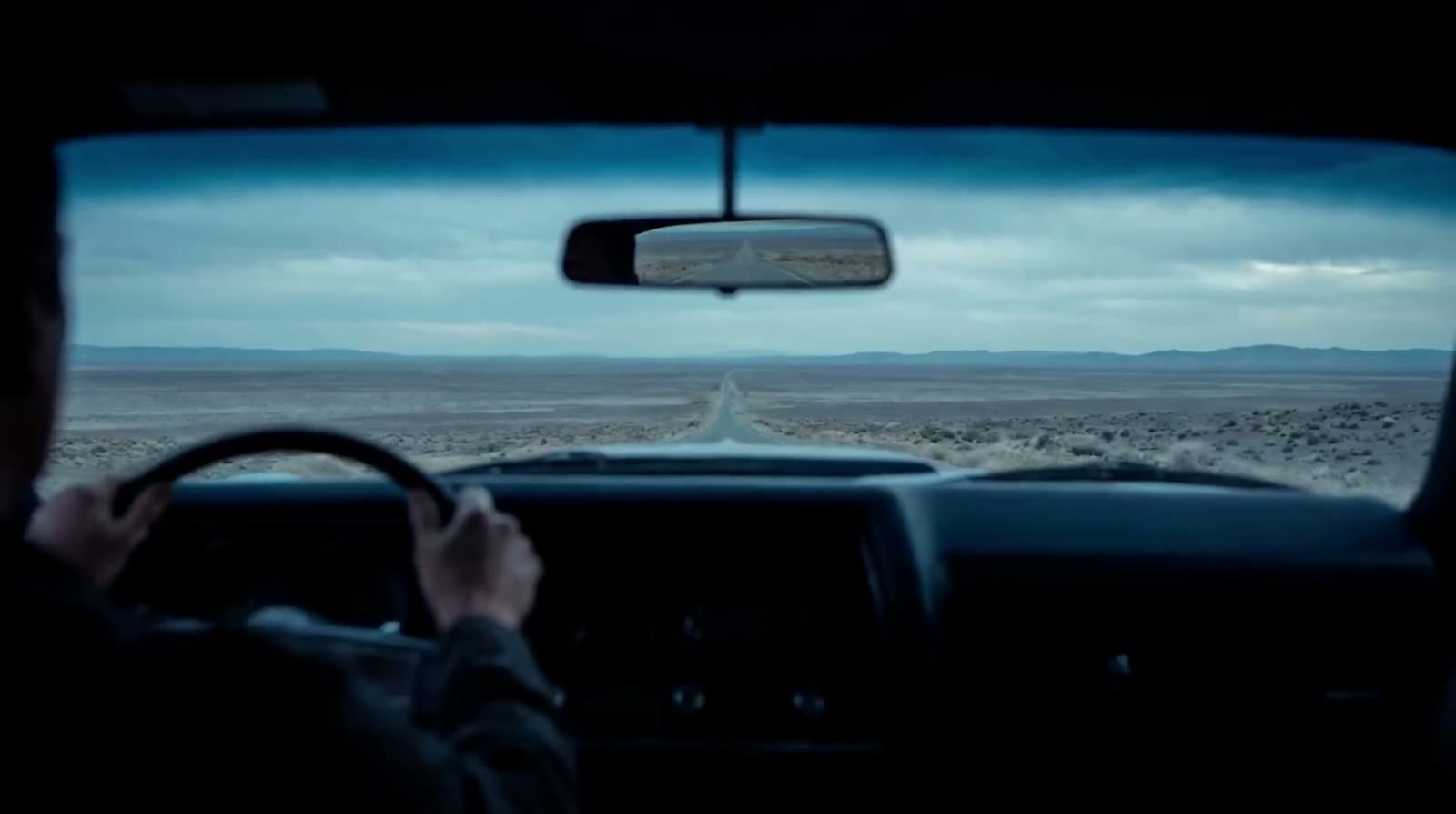
30ssingle generation
Let a complete scene unfold
Develop action, reaction, and a final beat inside one longer generation instead of compressing the idea into a brief moment.
Turn text and images into cinematic AI video. Shape the action, camera movement and sound around your story.
Create a VideoKling 4.0 brings your next video into focus, whether you begin with a written scene or a photograph. Turn an idea into a short film, animate a product image or explore a character in motion. Keep the subject, setting and camera direction together as you develop each shot.
Describe a subject, an action and a setting to create a scene from scratch. Add a camera move and a sense of pace: a slow push toward a face, a wide shot of an empty street, or a close-up as a product turns in the light. Text to video gives an unwritten scene its first moving image.
Start with a PromptStart with a portrait, product photo or illustrated frame. Use Kling 4.0 image to video to explore what happens next: a head turns, fabric catches the breeze or the camera pulls back to reveal the scene. Let the source image guide the look while your prompt describes the motion.
Animate an ImageDirect longer scenes through more planned moments, combine richer references, and carry character identity across image, video, and voice. These are the creative controls shaping the Kling 4.0 workflow.
Develop action, reaction, and a final beat inside one longer generation instead of compressing the idea into a brief moment.
Plan multiple visual beats across the timeline so a turn, transition, or reveal arrives where the story needs it.
Combine image, video, character, and object references to guide who appears, how the world looks, and what moves.
Shape vocal identity alongside appearance so dialogue can remain part of the character direction, not an afterthought.
Extend an existing scene forward, revisit what came before, or develop a longer narrative arc with more room to breathe.
Create 1–9 related images in 2K, 4K, or 8K for storyboards, character studies, campaign visuals, and the opening frames of your next video.
Make a character image the starting point for your AI video. Describe the expression, gesture and camera angle, using distinctive details in the reference to guide each shot. A library portrait can become a quiet smile; a posed figure can take its first step into a scene.
Give your text-to-video prompt the direction of a film shot. Specify a tracking move, an overhead view or a gradual close-up, then pair it with a clear action. Choose the frame and duration to fit the scene, and refine the result one shot at a time.
Plan what the audience hears alongside what they see. Write a line of dialogue, describe the room tone or suggest the sound of an action. Use the sound options in the selected video mode to explore a scene with voices, ambience and movement working together.
Design the image that will guide your next video. Describe the composition, lighting and mood, then explore a character or location before adding movement. A considered starting frame gives the animation a clearer visual direction.
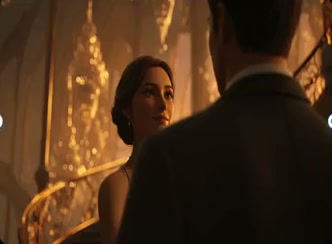
Soft window light for a portrait. Crisp reflections for a product. Warm chandeliers for a period scene. Develop the details that matter to your story, then choose a reference image with a clear subject and enough space for the movement you plan.
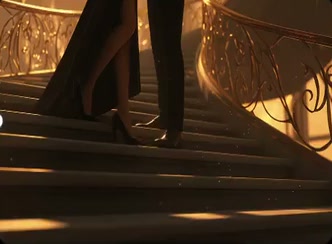
Work through an opening view, a character close-up and a final reveal around one creative brief. Use these images to plan the sequence and select a starting point for each video clip. Carry the chosen color, setting and character details into your prompts.
Build a practical Kling 4.0 video workflow: write the scene, develop a reference when you need one, then generate and review the motion. Each step gives you a specific creative decision to make.
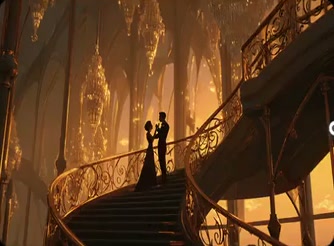
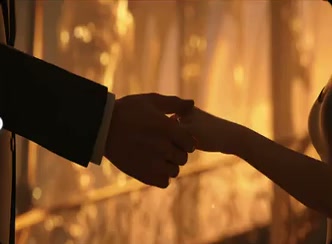
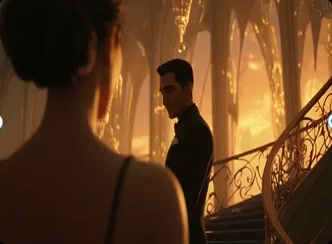
A golden ballroom at dusk. She turns toward him on the staircase. Warm light catches the silk of her dress. The camera moves slowly closer.
Use Kling 4.0 to develop short films, product videos and social content around a concrete idea. Pick the format that suits your audience, then build a scene with a clear purpose.
Kling 4.0 is a creative workspace for making AI video from text and images. Describe a scene or upload a starting image, choose your video settings and generate a clip. It suits ideas such as character moments, product reveals, cinematic scenes and short social videos.
Choose text to video when you have a scene in mind and want to explore its appearance from a written description. Choose image to video when you already have a photo, illustration or designed frame and want to add movement. In either mode, a focused prompt helps communicate the action and camera direction.
Open the video generator, select image to video and upload your photo. Describe what should move and how the camera should respond. For example, use a portrait with a subtle head turn and a slow push-in. Review the displayed settings and credit cost before generating.
Include a subject, one main action, the setting, lighting and a camera move. For example: “A cyclist rides along a forest trail at sunrise. Track alongside the rider as dust catches the light.” Start with a simple shot, review it, then refine the details that matter.
The video workspace includes sound options for supported generation modes. Describe the dialogue or ambience in your prompt and check the selected mode’s audio setting before submitting. Match the sound to the moment, such as a spoken line in a quiet room or footsteps across a hall.
The generator displays the credit cost for your selected settings before submission. See the pricing page for available plans, and open My Creations in your account to return to saved results.
A scene in words. A photo with a story. Bring it into motion with Kling 4.0.